In the previous step you created the animation in which a ball bounces off the ground, but the animation looks very rigid. This is because the animation uses linear interpolation for the transition between the keyframes. In Kanzi Studio you can use different interpolation modes to get different animations. See Changing the interpolation mode between keyframes.
In this step you first clean up the animation by removing the unused animation data, then you make the bouncing ball animation smoother by using the Bezier interpolation between the keyframes.
Clean up the animation
When you drag the Transformation property into the Animation Clip Editor to create keyframes in your animation, Kanzi Studio automatically adds the animation data for each attribute of the Transformation property to the animation clip. Since you changed only y axis Translation and Scale attributes of the Transformation property, you can delete all the other animation data items.
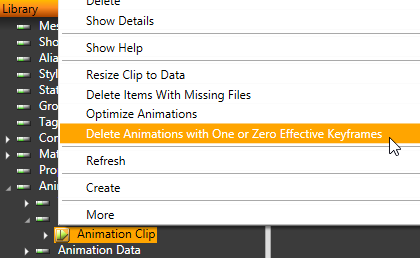
In the Library right-click in the Animations > Animation Clips the animation clip you want to clean up, and select Delete Animations with One or Zero Effective Keyframes. This deletes the animation data items that do not contain useful information for your animation.
Make the animation smoother
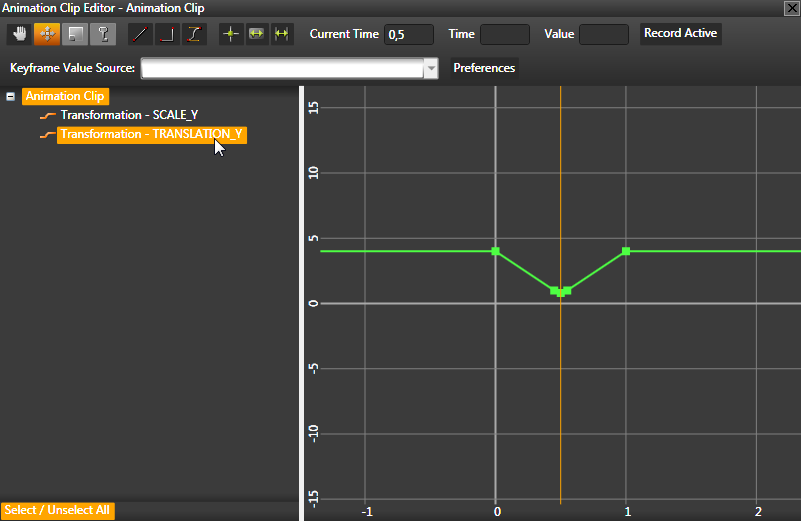
In the Animation Clip Editor select only the translation attribute of the y axis.
Use the mouse wheel to zoom-in on the animation canvas, and click to select the Move tool.
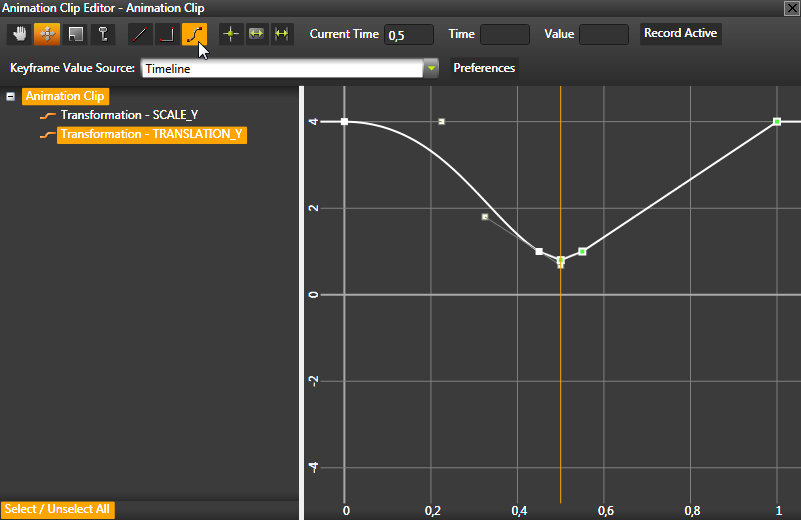
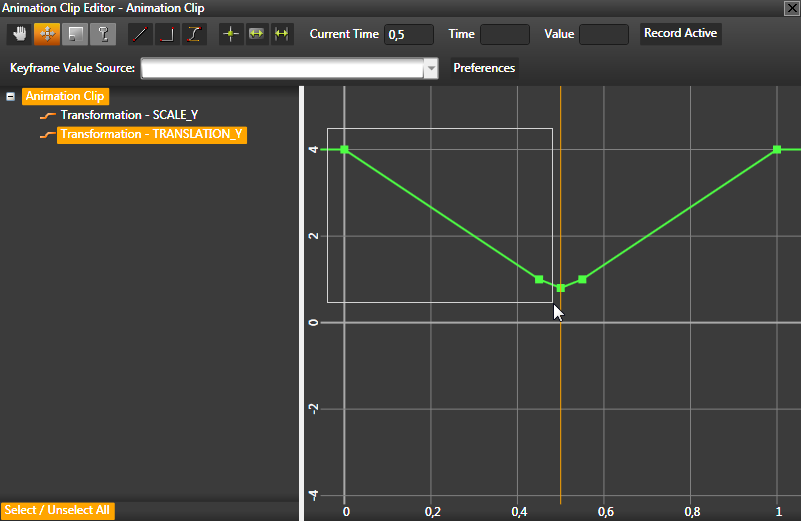
In the animation canvas select the first two keyframes by clicking and dragging the area around the first two keyframes. The selected keyframes turn white. The first keyframe defines the starting position of the ball, and the second keyframe defines the position of the ball as it hits the plane. These are the keyframes for which you want to change the interpolation to make the animation smoother.
Click to change the interpolation between the keyframes to Bezier interpolation. With Bezier interpolation you can control how quick the data between two keyframes changes.
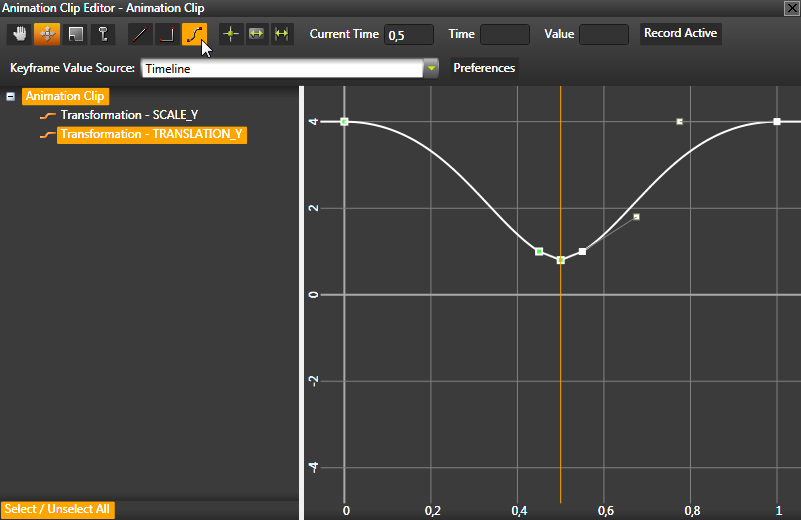
Select the last two keyframes that define the position of the ball as it leaves the ground and returns to its starting position, and change the interpolation between the keyframes to Bezier interpolation.
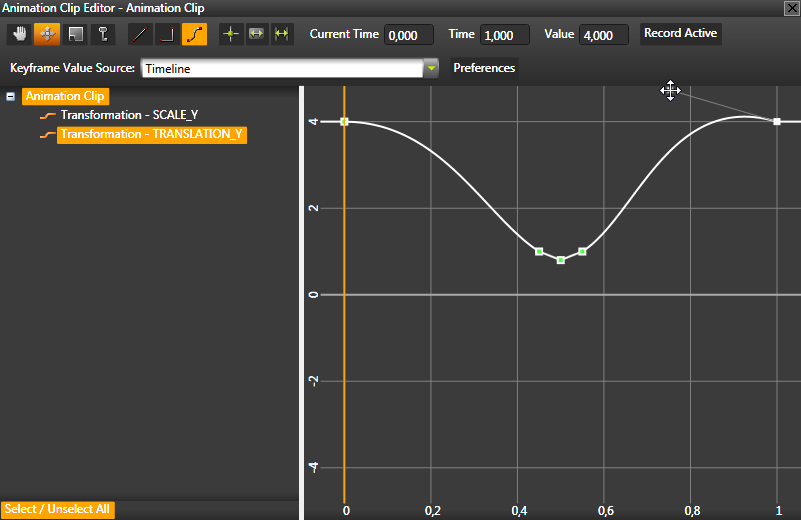
You can further adjust the smoothness of the animation by adjusting the Bezier tangent handles of each keyframe. Note that if you want to create a looping animation, you get the best result by making the interpolation in starting and ending keyframes symmetrical.
 to select the Move tool.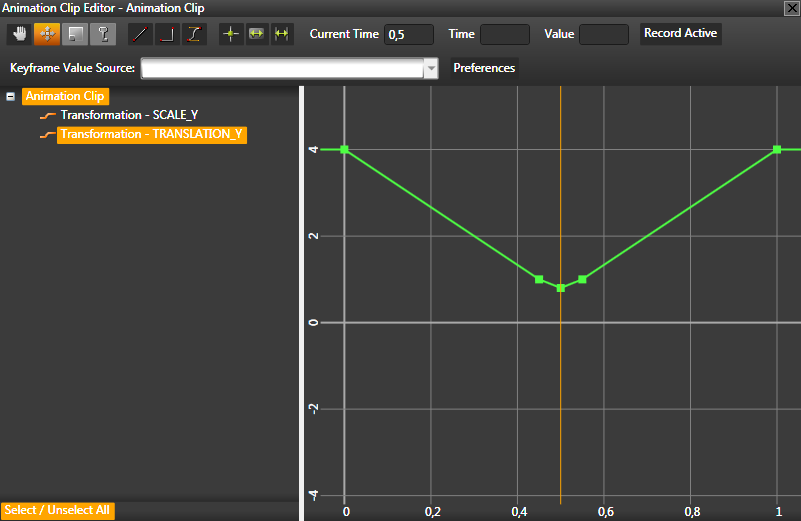
 to change the interpolation between the keyframes to Bezier interpolation.